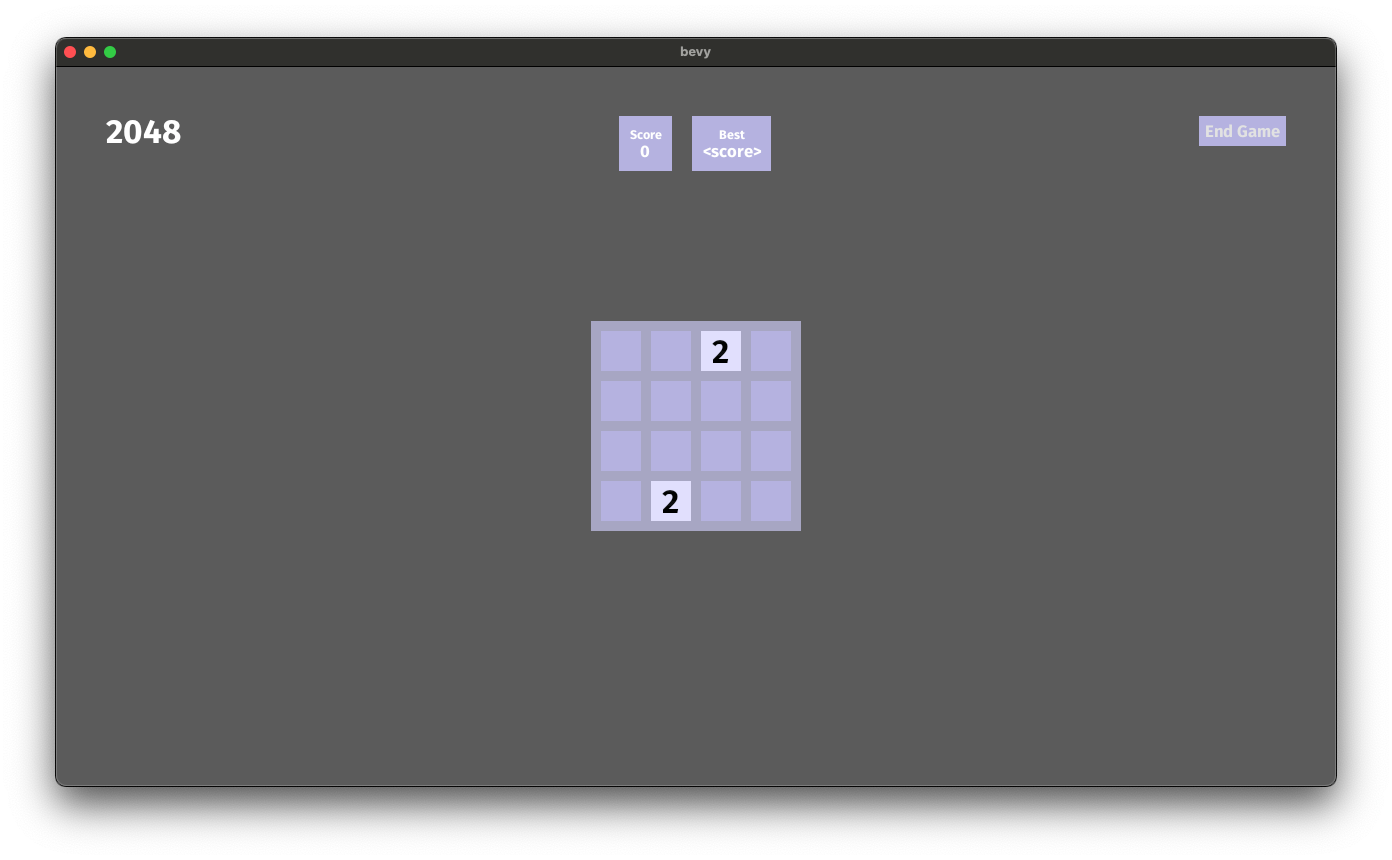
For our approach, starting a new game requires that we respond to a button press. This means setting up a system to handling button interactions.
We want to accomplish a few things for our reset game button:
- Change styles when hovered
- Display different button text based on game
RunState
We can start by introducing a set of new materials just for our button, including the FromWorld implementation for the default values.
struct ButtonMaterials {
    normal: Handle<ColorMaterial>,
    hovered: Handle<ColorMaterial>,
    pressed: Handle<ColorMaterial>,
}

impl FromWorld for ButtonMaterials {
    fn from_world(world: &mut World) -> Self {
        let mut materials = world
            .get_resource_mut::<Assets<ColorMaterial>>()
            .unwrap();
        ButtonMaterials {
            normal: materials
                .add(Color::rgb(0.75, 0.75, 0.9).into()),
            hovered: materials
                .add(Color::rgb(0.7, 0.7, 0.9).into()),
            pressed: materials
                .add(Color::rgb(0.6, 0.6, 1.0).into()),
        }
    }
}
We will also have to initialize the new materials in our GameUIPlugin.
impl Plugin for GameUiPlugin {
    fn build(&self, app: &mut AppBuilder) {
        app.init_resource::<ButtonMaterials>()
            .add_startup_system(setup_ui.system())
            .add_system(scoreboard.system());
    }
}
All of the techniques used to initialize the new materials for the button have been explored earlier in this course.
The button that will allow the user to end their game or start a new game will change materials on hover to indicate to the user that it is clickable. We've already added the materials to our app builder, which allows us to query them in the new button_interaction_system.
For the interaction_query we'll ask for an Interaction (which can be Clicked, Hovered, or None) as well as a mutable handle to the ColorMaterial used for the button. We'll use this to change the material used to display the button.
In this query we also filter by Changed<Interaction> and With<Button>. Filtering by Changed<Interaction> means Bevy will only give us the entities that have Interaction components that have changed since the last execution of the button_interaction_system system. Filtering by With<Button> means we will only get entities that have a Button component.
Finally we need mutable access to the RunState state machine.
fn button_interaction_system(
    button_materials: Res<ButtonMaterials>,
    mut interaction_query: Query<
        (&Interaction, &mut Handle<ColorMaterial>),
        (Changed<Interaction>, With<Button>),
    >,
    mut run_state: ResMut<State<RunState>>,
) {
Because we're filtering, we can't use single_mut (which is the mutable version of single that we used for the board query elsewhere). This is because single_mut will error if there are no entities or many entities; Basically unless there is always a single entity, it's an error. Instead we'll use iter_mut and a for loop, which will be more resilient to zero, one, or many entities even though we only expect one.
for (interaction, mut material) in
    interaction_query.iter_mut()
{
Inside of the loop, we'll match on the interaction. Interaction is an enum, so we can match on Clicked, Hovered, or None.
When the button is Clicked, we want to set the button material to the pressed material. This is very similar to the way we set materials on all of the other places we do that. The big difference is that material is a variable and we don't want to set the value of that variable to something new, we want to set the value of the material handle that variable contains, to a new material. To do that we can dereference the variable when setting the value.
You can think of this like the material variable being a container with a blue ball in it. We don't want to take the blue ball out and put a new red ball in the container, instead we want to reach into the container and paint the existing ball red.
We take this approach for the other two states as well.
match interaction {
    Interaction::Clicked => {
        *material = button_materials.pressed.clone();
        ...
    }
    Interaction::Hovered => {
        *material = button_materials.hovered.clone();
    }
    Interaction::None => {
        *material = button_materials.normal.clone();
    }
}
The final piece of functionality in this system is for setting the new RunState. We can use .current() to get the current RunState. If we're in the Playing state, we want to set the state to GameOver, and if we're in GameOver we want to send the user to the Playing state.
.set can fail for a few reasons, for example if we're already in the state we're trying to transition to, so we'll .unwrap it because we expect none of the failure cases to happen this time.
match run_state.current() {
    RunState::Playing => {
        run_state
            .set(RunState::GameOver)
            .unwrap();
    }
    RunState::GameOver => {
        run_state
            .set(RunState::Playing)
            .unwrap();
    }
}
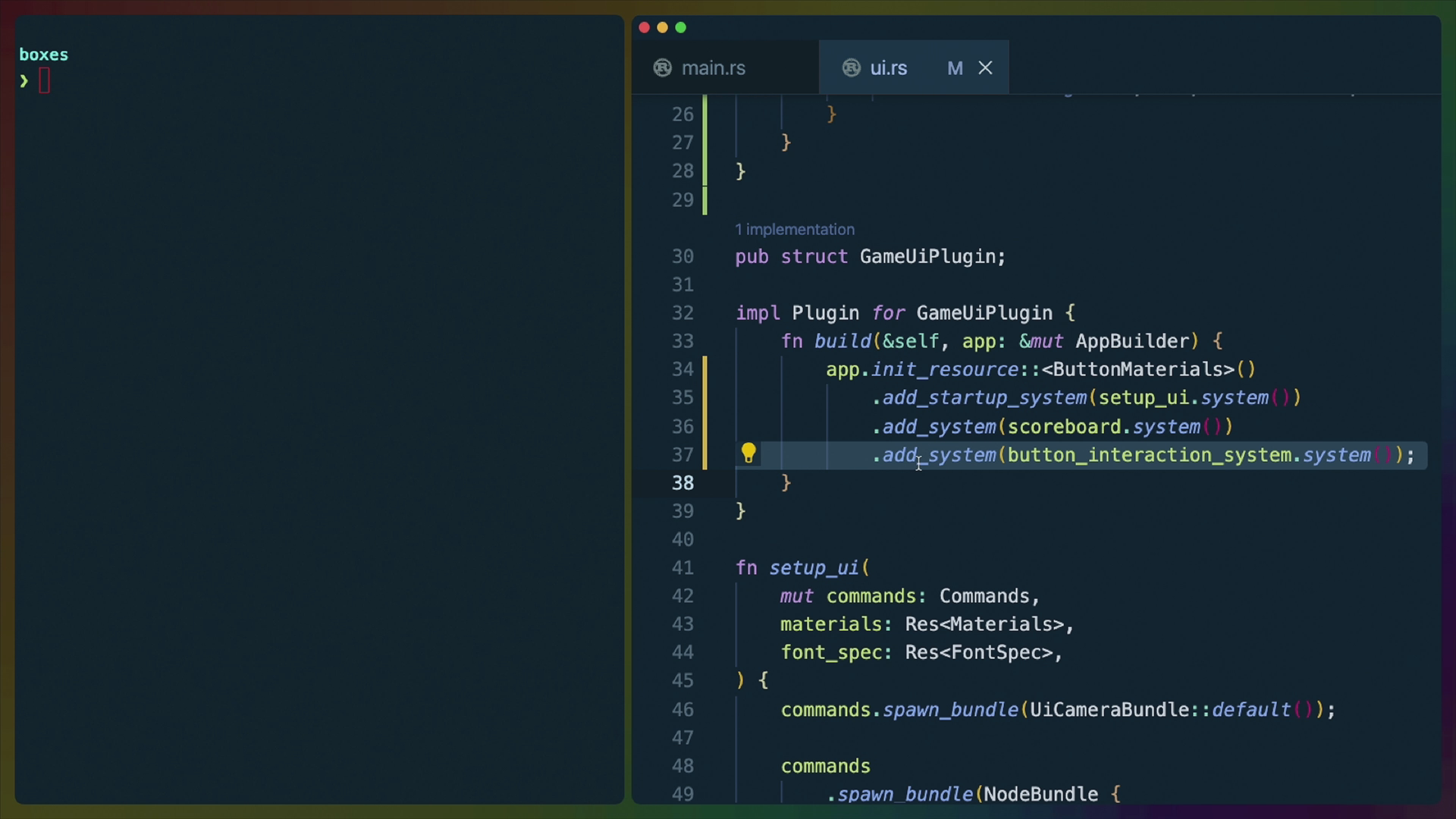
To run the system we'll add it to our GameUiPlugin.
impl Plugin for GameUiPlugin {
    fn build(&self, app: &mut AppBuilder) {
        app.init_resource::<ButtonMaterials>()
            .add_startup_system(setup_ui.system())
            .add_system(scoreboard.system())
            .add_system(button_interaction_system.system());
    }
}
If we run the game now, we'll see the button color change on hover and we'll also be able to click it to change the RunState of the game. You can check that this is happening because all of the systems responding to keyboard input will be stopped and the game will not progress.
However, the text on the button doesn't change regardless of what state we're in so the user never knows what the button will do. We can add another system to handle the button text in response to RunState changes.
The new button_text_system will query for entity children using the With filter in the same way we used it in the last system. We also grab all Text components as mutable so we can change the button text and we also grab the current RunState.
Our button_query will only ever have one result, so we can use .single().
children.first() will give us the first entity that is a child of the button entity. In this case, that is the entity with a Text component. text_query accepts the first entity as an argument and gives us back the Text component that is a child of the button.
fn button_text_system(
    button_query: Query<&Children, With<Button>>,
    mut text_query: Query<&mut Text>,
    run_state: Res<State<RunState>>,
) {
    let children = button_query
        .single()
        .expect("expected only one button");
    let mut text = text_query
        .get_mut(*children.first().expect(
            "expect button to have a first child",
        ))
        .unwrap();
    match run_state.current() {
        RunState::Playing => {
            text.sections[0].value = "End Game".to_string();
        }
        RunState::GameOver => {
            text.sections[0].value = "New Game".to_string();
        }
    }
}
To finish off this system, we'll do the same match on run_state.current() and set the appropriate text for each state. Text components have sections that can be updated and our Texts only have a single section, so we can set text.sections[0].value to the string we want it to display.
match run_state.current() {
    RunState::Playing => {
        text.sections[0].value = "End Game".to_string();
    }
    RunState::GameOver => {
        text.sections[0].value = "New Game".to_string();
    }
}
We can add the button_text_system to our GameUiPlugin to finish off the button interactivity.
impl Plugin for GameUiPlugin {
    fn build(&self, app: &mut AppBuilder) {
        app.init_resource::<ButtonMaterials>()
            .add_startup_system(setup_ui.system())
            .add_system(scoreboard.system())
            .add_system(button_interaction_system.system())
            .add_system(button_text_system.system());
    }
}
Running the game now will result in a button we can use to end the game, restart the game, and shows different text depending on which RunState the game is in.