Required Components: Gravity and Velocity
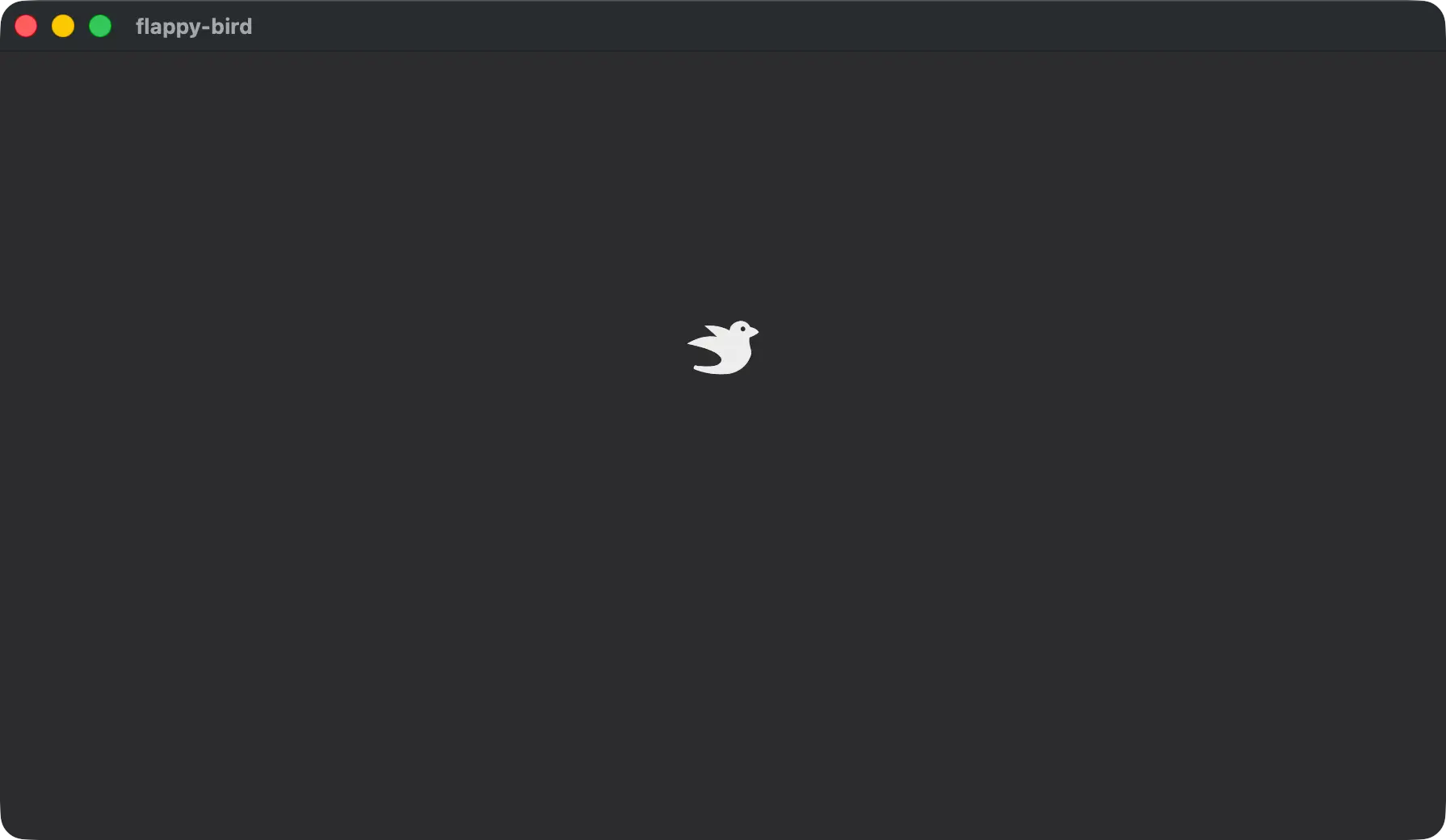
The Bevy Sprite is on screen but it’s not moving yet. The classic Flappy Bird applies gravity to the player constantly while letting the player “jump” which moves the player in an arc. The player in our implementation won’t move left-to-right, instead we’ll position it offset from the left edge of the screen and move the pipes past it. This will make it look like the bird is moving forward through the level, and make our player controller a bit simpler since we only have to deal with one axis of movement.
Gravity
We’ll take care of gravity first by starting to create a set of new Components. I typically place these near the top of the file, but the source code location largely doesn’t matter from a functional perspective.
Player, for labelling the Player characterGravity, For setting the gravity scale for an EntityVelocity, for tracking the accumulated velocity for an Entity
#[derive(Component)]
#[require(Gravity(1000.), Velocity)]
struct Player;

#[derive(Component)]
struct Gravity(f32);

#[derive(Component, Default)]
struct Velocity(f32);
The Player Component allows us to differentiate the player Entity from other entities when querying for data in systems. It also requires the other two Components: Gravity and Velocity. This is a Bevy feature called Required Components, which allows us to guarantee that if we insert the Player component on an Entity, then these other components will as well.
We get the option to set default values that will be used when inserting these extra components. One way is to derive a Default implementation for the Component. This is what we do for Velocity, and the Default implementation for an f32 is 0.0, so our Velocity Component will get a value of Velocity(0.0) when Player causes it to be inserted.
Another option is to define the value in the require attribute. This is what we’ll do for Gravity, which allows us to set the gravity scale per-entity and define a different value in any require attribute. Our Gravity Component will be set to Gravity(1000.0) when inserted because of the Player Component.
Add the Player component to Entity with the Bevy Sprite, which will now also cause the Gravity and Velocity components to be added.
commands.spawn((
    Player,
    Sprite {
        custom_size: Some(Vec2::splat(25.)),
        image: asset_server.load("bevy-bird.png"),
        ..default()
    },
    Transform::from_xyz(0.0, 0.0, 1.0),
));
The gravity system
Using the new components, we can write a new system that queries for the relevant data and operates on it.
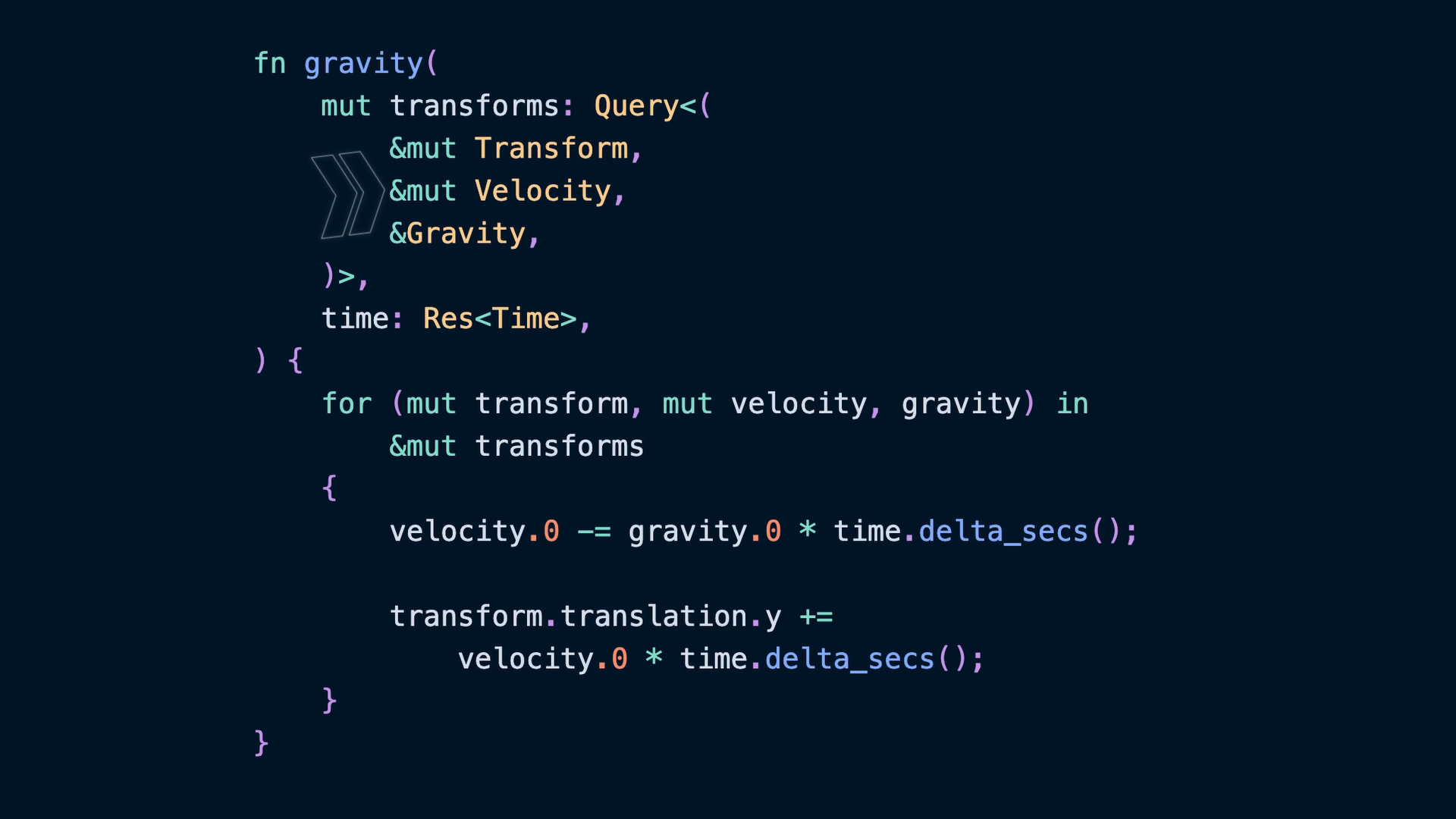
fn gravity(
    mut transforms: Query<(
        &mut Transform,
        &mut Velocity,
        &Gravity,
    )>,
    time: Res<Time>,
) {
    for (mut transform, mut velocity, gravity) in
        &mut transforms
    {
        velocity.0 -= gravity.0 * time.delta_secs();

        transform.translation.y +=
            velocity.0 * time.delta_secs();
    }
}
To access data in our game, we can treat the ECS as a kind of database and Query for it. Using the Query SystemParam allows us to fetch the Components that are on Entitys. Iterating over the query is equivalent to iterating over each Entity’s components in turn. In our case, we’ll only have one Entity in the query results, so could use a similar query like Single, but the logic here is generic and looping is not costly. Any Entity with these components would behave in a similar way, so looping or using single is up to you.
However, the mutability of the values is important! References (the &) are generally required, and those can be shared or exclusive references. Exclusive references are written as &mut and allow us to mutate the values of the components while shared references & only allow us to view the values. Since we’ll be mutating the components when we iterate over them, we’ll also need mut declarations in a few places. Especially including the &mut transforms that we’ll be iterating over.
The other SystemParam we use is the Time Resource. Each frame, using Res<Time> gives us access to how much time has passed via the delta_secs function. This allows us to change the Velocity over time, by subtracting the Gravity multiplied by the time. Then additionally calculate the change to the Entity’s Transform by applying the velocity.
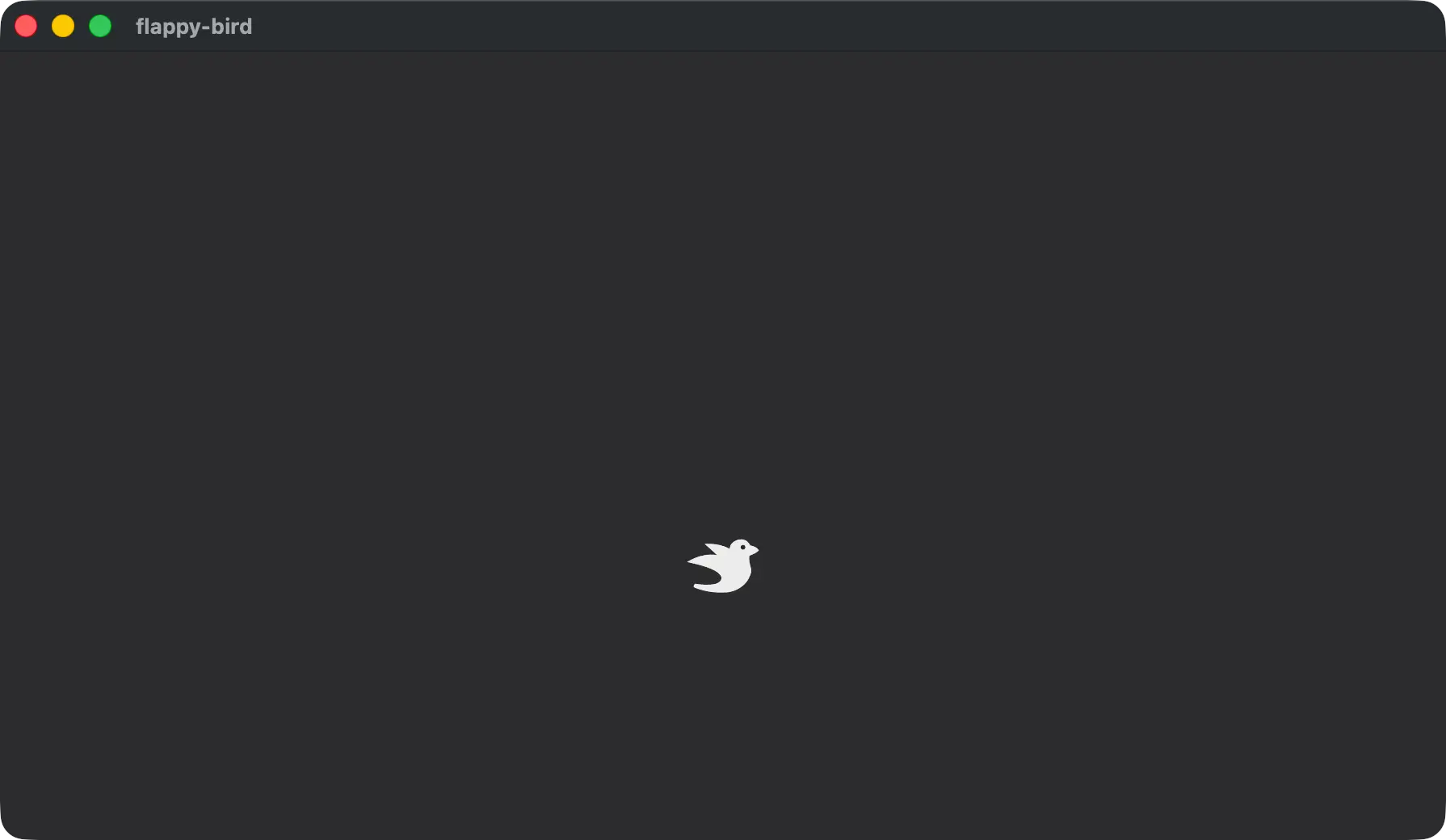
This configuration will make the Player accelerate downward over time. Our gravity calculation numbers are relative to the pixel counts, which is why we aren’t using something realistic like “9.8 m/s” and rather using something more like 1000. Feel free to experiment with alternative calculations to see how it affects the player’s movement.
We also need to add this system to our App, for which we have two options. The system can run in the Update schedule or the FixedUpdate schedule. Either will work at first, especially if you’re only ever running on a single computer and a single monitor, but the delta time in Update is dependent on the framerate while FixedUpdate will have a consistent delta time. Generally speaking, rendering logic goes in Update while gameplay logic goes in FixedUpdate as a result, which helps to ensure consistent behavior across framerates and devices.
fn main() -> AppExit {
    App::new()
        .add_plugins(DefaultPlugins)
        .add_systems(Startup, startup)
        .add_systems(FixedUpdate, gravity)
        .run()
}
Upward Velocity and User Input
Now that the bird is falling, we also need a way to let the player make it go upward. This will be a stiff jolting movement that would be similar to an instantaneous force in the upward direction. To handle this, we’ll accept user input and if a button is pressed then we’ll insert an arbitrary upward velocity.
Add a controls system to the Update schedule.
.add_systems(Update, controls)We only have a single player, so we’ll take advantage of Single this time. This behaves similarly to Query with the exception that it expects exactly one result. We’ll query (using Single) for the Velocity component on the entity, and the second type argument filters for only the entities with the Player component. There’s only one Entity with the Player component, so this all works out.
fn controls(
    mut velocity: Single<&mut Velocity, With<Player>>,
    buttons: Res<ButtonInput<MouseButton>>,
) {
    if buttons.any_just_pressed([
        MouseButton::Left,
        MouseButton::Right,
    ]) {
        velocity.0 = 400.;
    }
}
We’ll also need access to the ButtonInput resource for MouseButtons. There are others we could use, such as KeyCode which you may want to play with. The important APIs are part of ButtonInput, which includes any_just_pressed.
We’ll check to see if MouseButton::Left or MouseButton::Right were pressed in the current frame. If so, set the bird’s Velocity to 400. which will cause an upward jump when we press a mouse button. The gravity system then takes care of decreasing the velocity over time!