Spawning Pipes
With a player character moving in the correct way, we’ll need a set of pipes to move through.
In Flappy Bird the pipes move instead of the player which allows an infinite playground of pipes to move through. This also makes it easier to sync the camera with the player’s position: there’s no camera movement!
Creating a Library
The pipe functionality can be completely separate from the rest of our game. To emphasize this, we’re going to build a Plugin in lib.rs, then use that plugin in main.rs.
Our first step is going to be to create the src/lib.rs file and move the constants from main.rs into it.
pub const CANVAS_SIZE: Vec2 = Vec2::new(480., 270.);
pub const PLAYER_SIZE: f32 = 25.0;
After removing the constants from main.rs, we’ll need to import them from our library. Instead of doing them one-by-one, we’ll bring anything that’s public into scope using *.
use bevy::{camera, prelude::*};
use flappy_bird::*;
Writing your first Plugin
Similar to the way we can organize code into modules, we can use Plugins in Bevy to encapsulate Systems, Resources, and other useful functionality. Plugin is a trait that we can implement, so we’ll create a new PipePlugin struct and write the absolutely minimum to satisfy the trait. While PipePlugin is a unit struct here with no fields, it could also hold configuration that we use in our plugin implementation.
use bevy::prelude::*;

pub const CANVAS_SIZE: Vec2 = Vec2::new(480., 270.);
pub const PLAYER_SIZE: f32 = 25.0;

pub struct PipePlugin;

impl Plugin for PipePlugin {
    fn build(&self, app: &mut App) {
        info!("build PipePlugin!");
    }
}
When we add this plugin to our Bevy application, the build function will get called, which will result in a log to the console, confirming that we’ve set our plugin up correctly.
Back in src/main.rs, we’ll add our PipePlugin to our App. I personally tend to like separating my application’s plugins from the upstream plugins like DefaultPlugins, so I’ve used an additional add_plugins call here. You could use a tuple in a single add_plugins call as well if you prefer.
App::new()
    .add_plugins(DefaultPlugins)
    .add_plugins(PipePlugin)
Running the application with cargo run should now show our log when the build function runs.
INFO flappy_bird: build PipePlugin!Spawning a Pipe
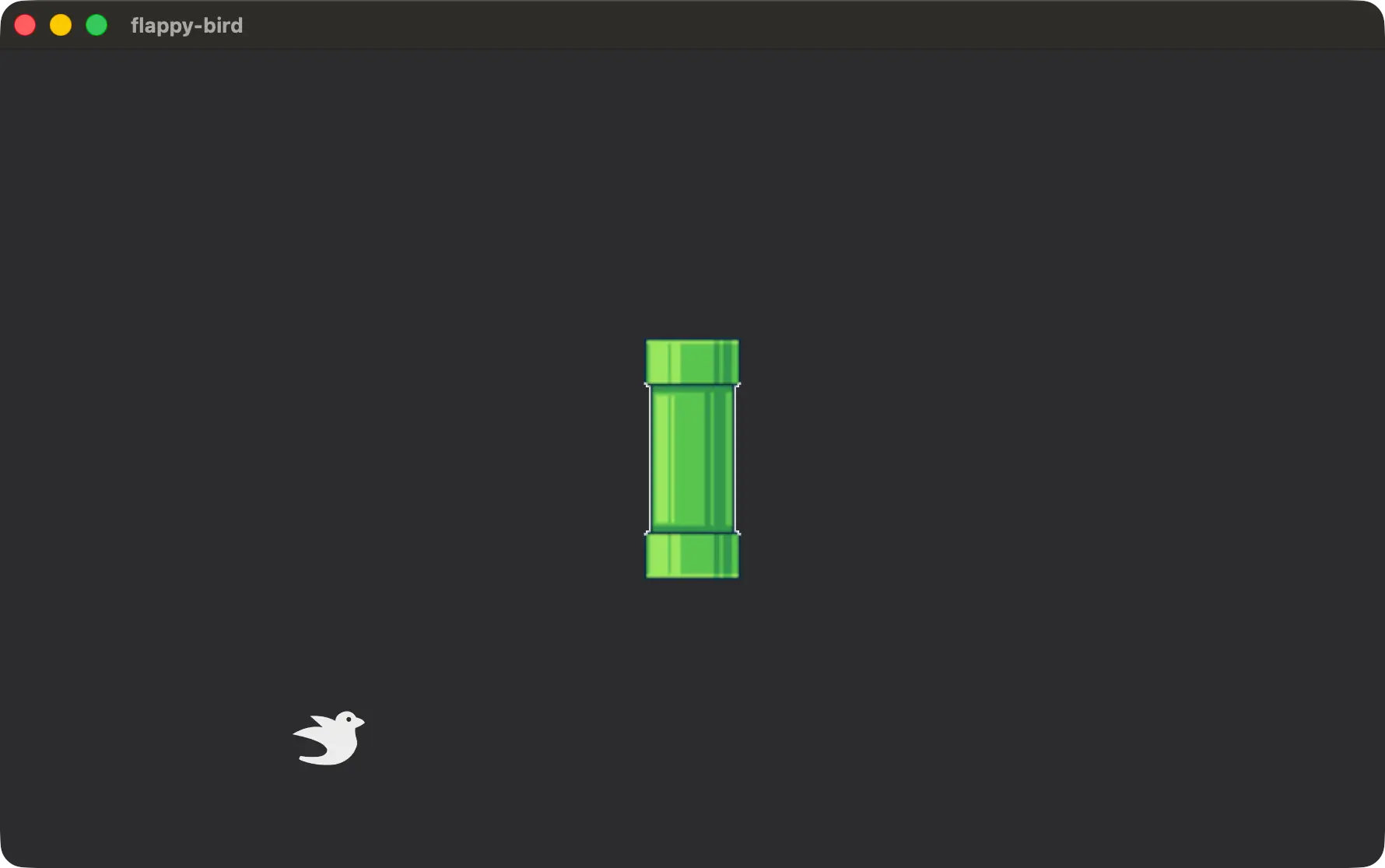
Let’s take a look at our pipe texture by spawning it with a Sprite. The actual image size is 32x80.
Since we will have to spawn many pipes, we’ll start off immediately by adding a new spawn_pipes system to FixedUpdate in our PipePlugin. Normally, this would run many times but we can use a condition to only run it once. This is built-in and called run_once.
These conditions are basically systems that return a boolean. Which means internally run_once keeps a bool that is set to true the first time the system is run and prevents running the system every time after that.
impl Plugin for PipePlugin {
    fn build(&self, app: &mut App) {
        app.add_systems(
            FixedUpdate,
            spawn_pipes.run_if(run_once),
        );
    }
}
The spawn_pipes system only has to care about how to spawn a pipe and it doesn’t have to deal with configuring itself to spawn at specific times. We use Commands and the AssetServer here, which we’ve seen before in this workshop.
fn spawn_pipes(
    mut commands: Commands,
    asset_server: Res<AssetServer>,
) {
    commands.spawn((
        Sprite {
            image: asset_server.load("pipe.png"),
            ..default()
        },
        Transform::from_xyz(0.0, 0.0, 1.0),
    ));
}
Scaling a Pipe
Great! We’ll need to scale the sprite vertically to get it to cover the screen, so let’s double the size to check to see how that renders. By default the sprite will use the image size, which is 32x80, so let’s keep the width and double the height.
fn spawn_pipes(
    mut commands: Commands,
    asset_server: Res<AssetServer>,
) {
    commands.spawn((
        Sprite {
            image: asset_server.load("pipe.png"),
            custom_size: Some(Vec2::new(32., 160.)),
            ..default()
        },
        Transform::from_xyz(0.0, 0.0, 1.0),
    ));
}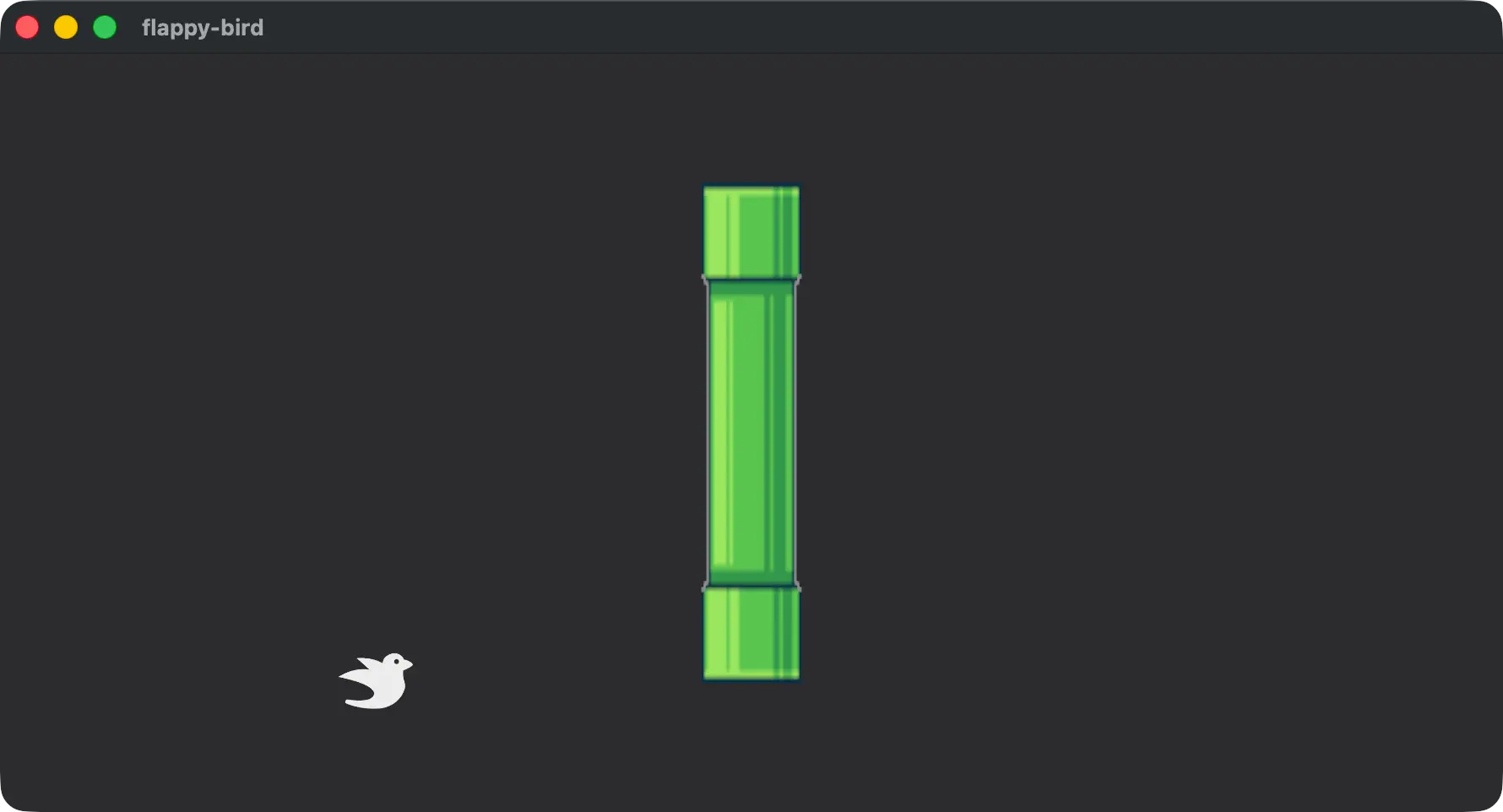
The image stretches vertically which is really unfortunate for pixel art. We can fix that though, using the image_mode field on Sprite.
SpriteImageMode::Sliced allows us to cut our image into 9 pieces, a 3x3 grid of tiles. We define the size of the corner tiles, which won’t scale or stretch, and set the center tile to stretch.
Since we aren’t stretching the image width-wise right now this will result in the center tile stretching vertically to fit the new size of the sprite, which is exactly what works for our image.
note
The value 8 for the width is arbitrary and doesn’t affect anything since we currently aren’t changing the width of the image. Similarly, the value 19 is fairly arbitrary. In this case it is the smallest number of pixels that contains the top of the pipe.
These values are relative to the original image texture pixel size, so 32x80 in our case.
commands.spawn((
    Sprite {
        image: asset_server.load("pipe.png"),
        custom_size: Some(Vec2::new(32., 160.)),
        image_mode: SpriteImageMode::Sliced(
            TextureSlicer {
                border: BorderRect::axes(8., 19.),
                center_scale_mode:
                    SliceScaleMode::Stretch,
                ..default()
            },
        ),
        ..default()
    },
    Transform::from_xyz(0.0, 0.0, 1.0),
));
Why is the Image Fuzzy
The height looks good, but if we zoom in on the pipe top we can see the image is still pretty fuzzy!
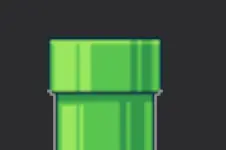
This is due to how images are filtered, or sampled, by the GPU when being displayed. In this case, the image is using Linear filtering, which means the pixels are being combined in certain scenarios! This is not great for pixel art like our pipe, so we need to use “nearest” filtering.
We can specify the kind of filtering we want when loading the image using load_with_settings and setting the appropriate value in the settings.
To to this we’ll need to bring ImageLoaderSettings into scope as well!
fn spawn_pipes(
    mut commands: Commands,
    asset_server: Res<AssetServer>,
) {
    let image = asset_server.load_with_settings(
        "pipe.png",
        |settings: &mut ImageLoaderSettings| {
            settings
                .sampler
                .get_or_init_descriptor()
                .set_filter(
                    bevy::image::ImageFilterMode::Nearest,
                );
        },
    );
    commands.spawn((
        Sprite {
            image,
            custom_size: Some(Vec2::new(32., 160.)),
            image_mode: SpriteImageMode::Sliced(
                TextureSlicer {
                    border: BorderRect::axes(8., 19.),
                    center_scale_mode:
                        SliceScaleMode::Stretch,
                    ..default()
                },
            ),
            ..default()
        },
        Transform::from_xyz(0.0, 0.0, 1.0),
    ));
}
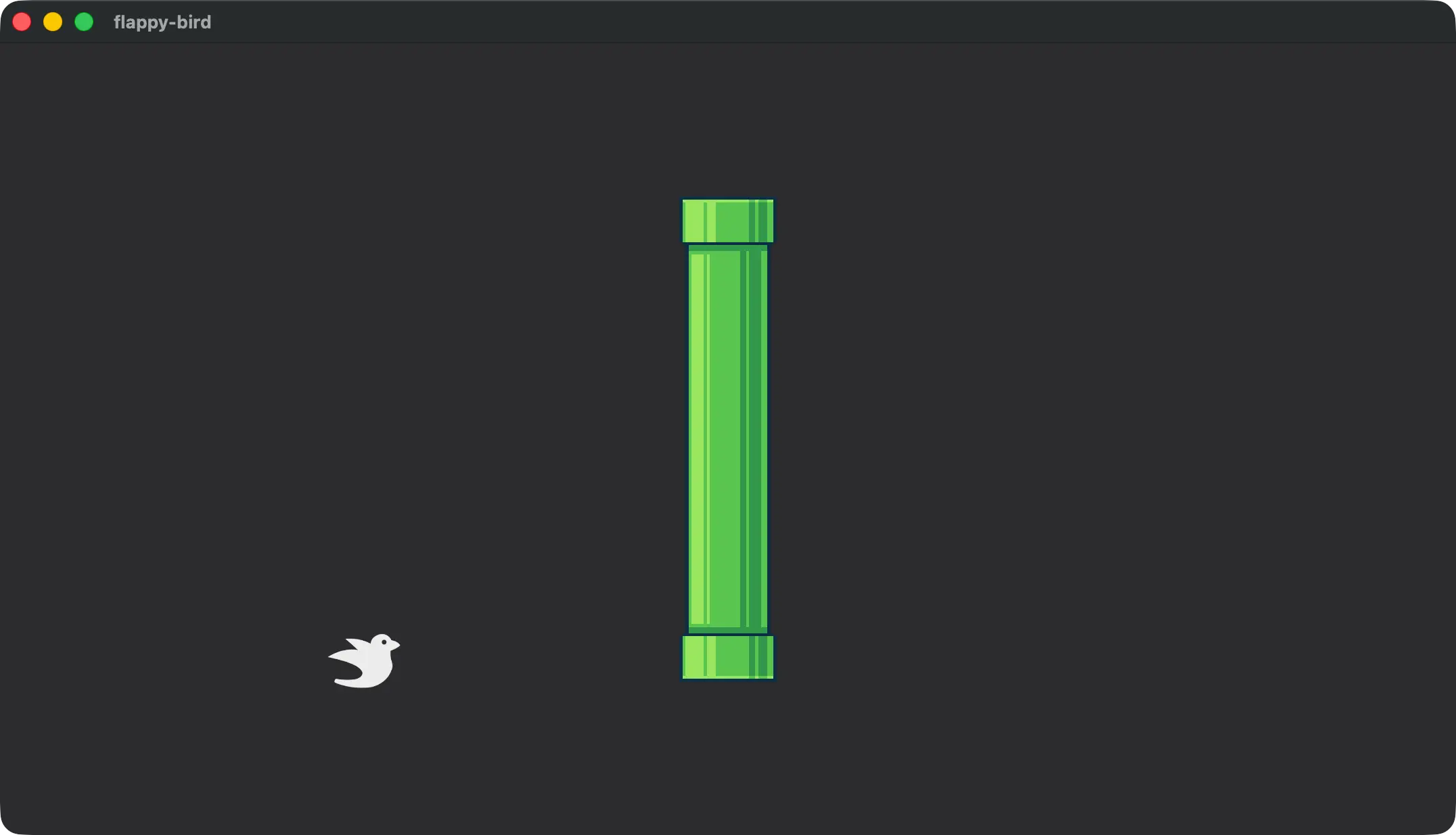
This fixes our blurry image!

note
Specifying the filtering mode per-image would get tiresome if you had a lot of pixel art assets, so you could set the default using the ImagePlugin settings instead. I don’t like the way this makes the bird look, so I didn’t do that here.
.add_plugins(DefaultPlugins.set(ImagePlugin {
    default_sampler:
        ImageSamplerDescriptor::nearest(),
}))
With that we have a properly sampled pipe spawning on screen that we can change the height of at will while keeping the visual we want.