Collision via RayCasting
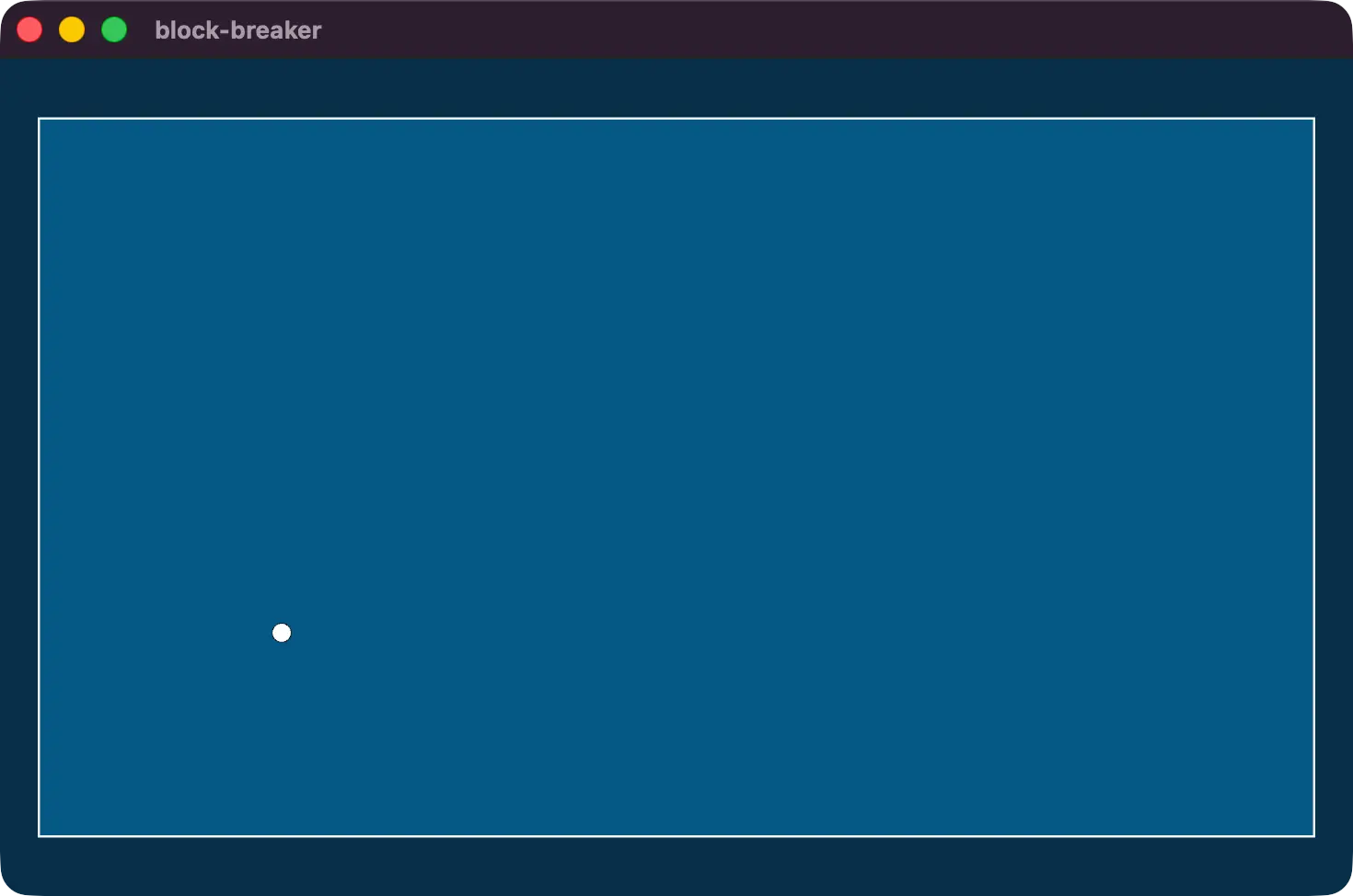
As of the last lesson, our ball is moving but it flies off the screen, so it is time to put some borders around the level to contain the ball bouncing around.
We’ll do this via ray-casting with tools that are built-in to bevy.
Collision Shapes
Bevy includes a few BoundingVolumes by default. For 2d these include Aabb2d and BoundingCircle.

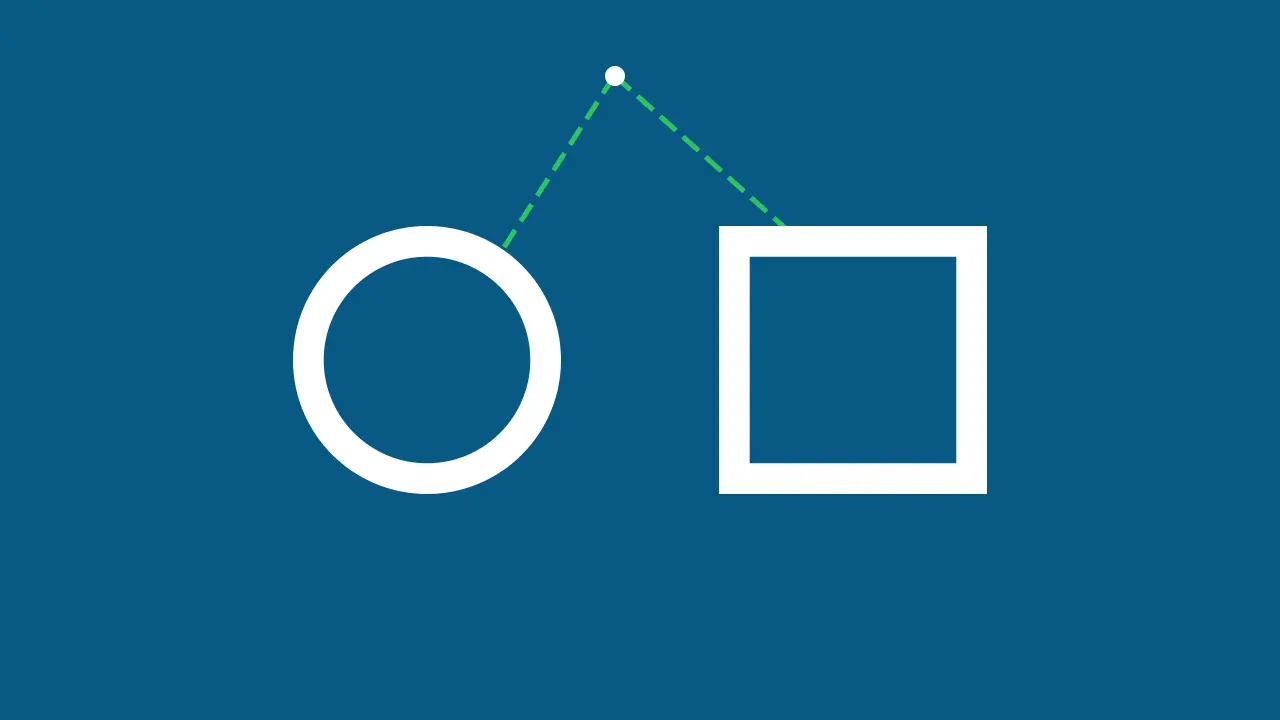
An Aabb2d is a rectangle while a BoundingCircle is a circle defined by its radius. Using Ray2d and RayCast2d, we can detect the collision of a ray vs either of the bounding shapes.
This means if we treat our ball as a singular point, and cast a ray in the velocity’s direction, we can always figure out if it will hit a volume.
note
There is an alternative for collision detection as well. Both bounding shapes implement IntersectsVolume::intersects which would tell us on every frame if two shapes, such as the ball and a brick, are overlapping.
The reason we didn’t choose to go this direction is that at higher speeds the ball can skip right over bricks as it warps from one location to another each frame. With raycasting, we can detect if the ball hits anything on its path in between those two points.
Defining the play area
If we’re going to have walls, it will be useful to define a size for the play area and set the camera to show that area so we can actually see the ball bouncing off the walls. We’ll introduce two new constants at the top of the file, the CANVAS_SIZE and a BRICK_SIZE. We introduce the brick size now because we’re going to use it to add some space on either side of the canvas when defining how much of world the camera should show.
const BRICK_SIZE: Vec2 = Vec2::new(80., 40.);
const CANVAS_SIZE: Vec2 = Vec2::new(1280., 720.);
Then we can bring ScalingMode into scope.
use bevy::{
    camera::ScalingMode, color::palettes::tailwind::*,
    prelude::*,
};
And expand our Camera2d definition to have a custom scaling mode using ScalingMode::AutoMin which keeps the aspect ratio while making sure the width and height can’t be smaller than we define.
commands.spawn((
    Camera2d,
    Projection::Orthographic(OrthographicProjection {
        scaling_mode: ScalingMode::AutoMin {
            min_width: CANVAS_SIZE.x + BRICK_SIZE.x,
            min_height: CANVAS_SIZE.y + BRICK_SIZE.y,
        },
        ..OrthographicProjection::default_2d()
    }),
));
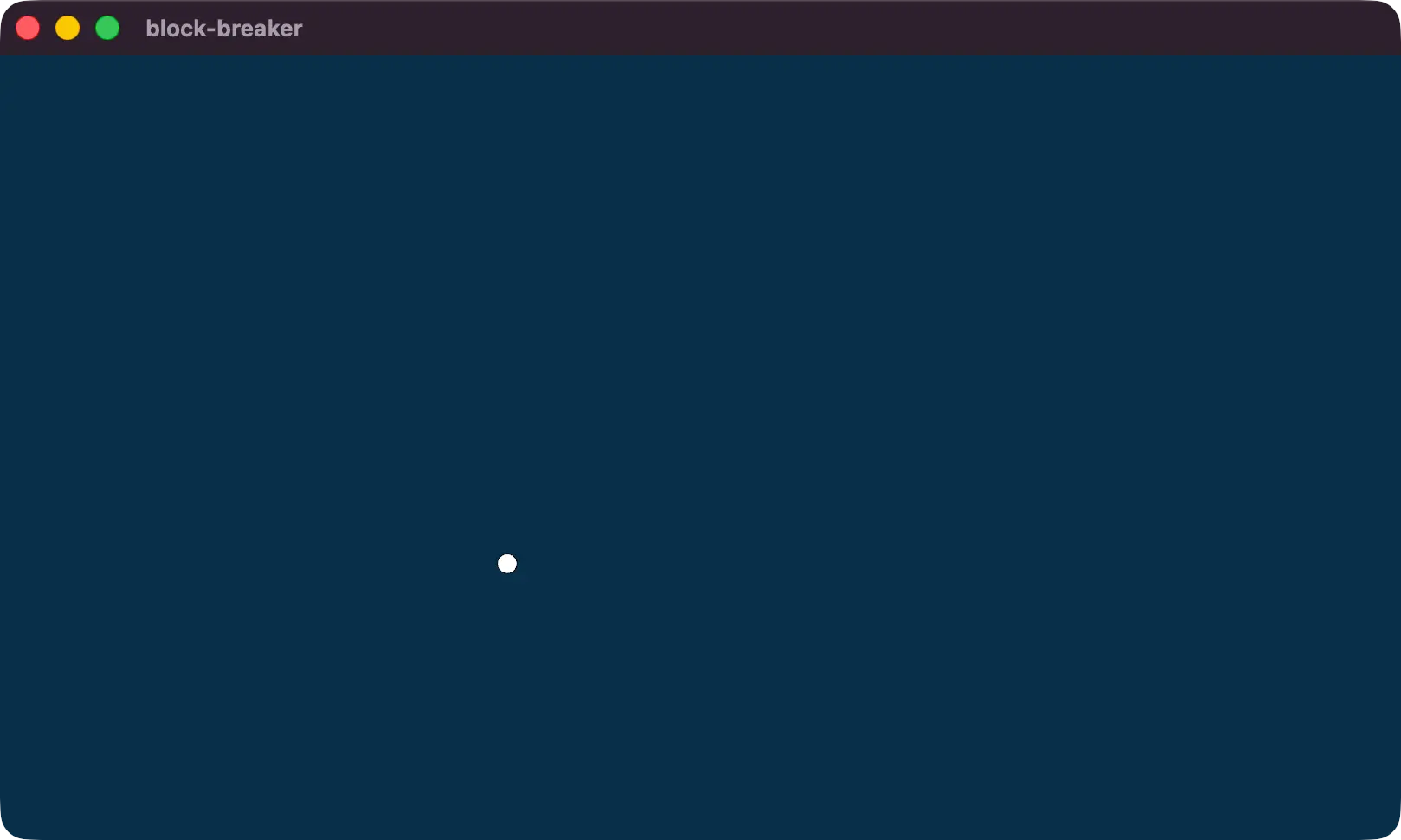
But this doesn’t really look any different, other than a smaller ball on screen. All we’ve done so far is make the area shown by the camera bigger.
Spawning a Level
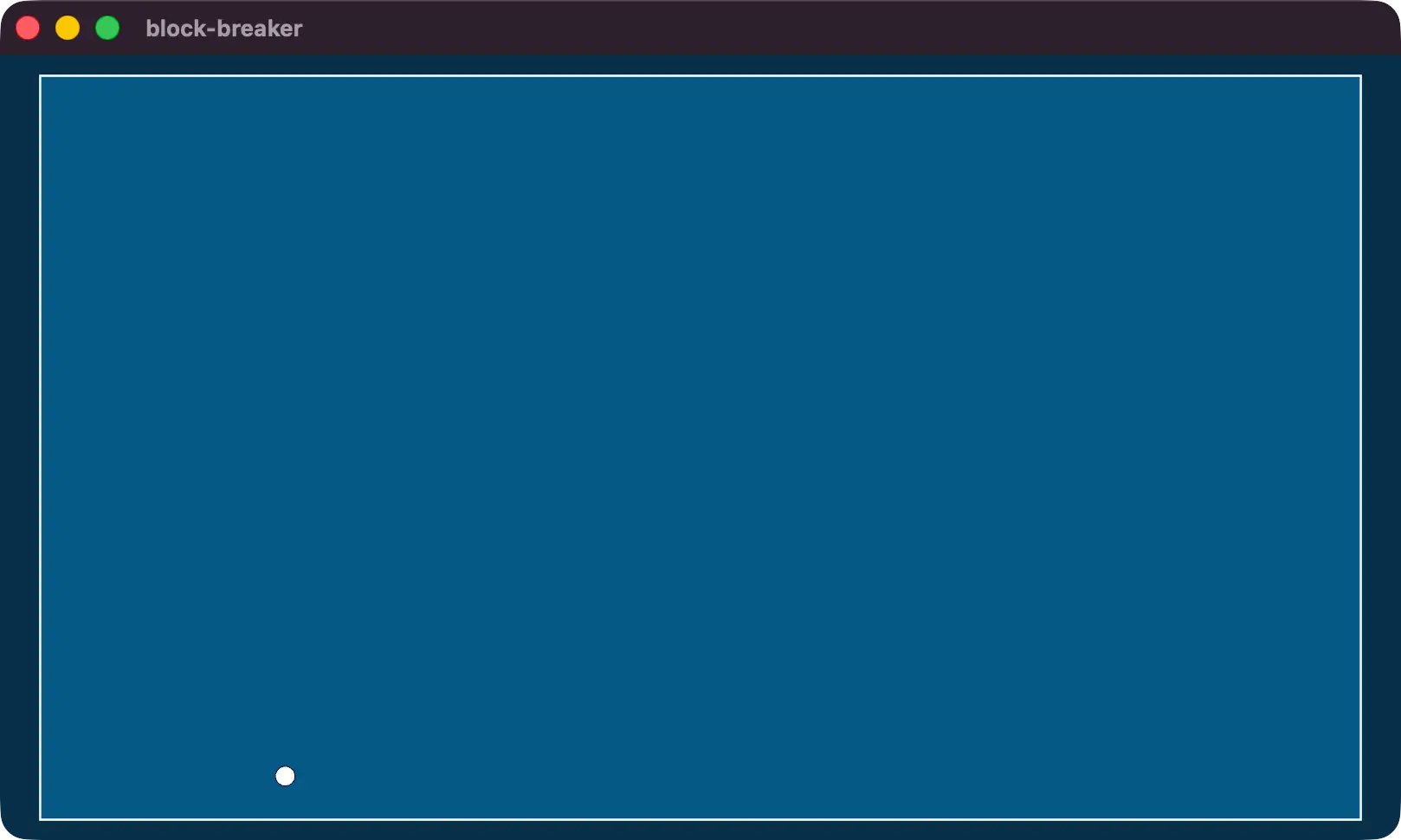
We’ll use the same setup we did for the ball, but using Sprite instead of Mesh2d. We declare a border using one rectangle, and the inner play area using a second rectangle.
note
We’re using the z-axis value here to make sure that the “border” rectangle is behind the “play area” rectangle. Using negative values makes it easier to build the rest of our world with default values, like bricks and the ball.
commands.spawn((
    Sprite {
        custom_size: Some(Vec2::new(
            // 4px border
            CANVAS_SIZE.x + 4.,
            CANVAS_SIZE.y + 4.,
        )),
        color: Color::from(SKY_50),
        ..default()
    },
    Transform::from_xyz(0., 0., -3.0),
));
commands.spawn((
    Sprite {
        custom_size: Some(CANVAS_SIZE),
        color: Color::from(SKY_800),
        ..default()
    },
    Transform::from_xyz(0., 0., -2.0),
));
Walls
With the play area defined and in view, it’s time to build the walls we’ll use for the ball collision. We’ll store a Plane2d in a new component called Wall. The Plane2d is useful here because it is an infinitely long wall that we can place in a location with a clear normal that we’ll use to reflect the ball when it hits the wall.
#[derive(Debug, Component)]
struct Wall(Plane2d);
We’ll spawn a wall for each side of the arena, with the normal pointing in towards the center of the arena. When we want the ball to bounce off this wall, we want it to bounce back into the play area. So a wall that we place on the left side of the play area (which is the negative X direction) should have a normal facing in the positive X direction.
commands.spawn((
    Wall(Plane2d::new(Vec2::X)),
    Transform::from_xyz(-CANVAS_SIZE.x / 2., 0., 0.),
));
commands.spawn((
    Wall(Plane2d::new(Vec2::NEG_X)),
    Transform::from_xyz(CANVAS_SIZE.x / 2., 0., 0.),
));
commands.spawn((
    Wall(Plane2d::new(Vec2::Y)),
    Transform::from_xyz(0., -CANVAS_SIZE.y / 2., 0.),
));
commands.spawn((
    Wall(Plane2d::new(Vec2::NEG_Y)),
    Transform::from_xyz(0., CANVAS_SIZE.y / 2., 0.),
));
Then it is time to update our ball movement system to account for the new walls.
fn ball_movement(
    mut balls: Query<
        (&mut Transform, &mut Velocity),
        With<Ball>,
    >,
    walls: Query<(&Wall, &Transform), Without<Ball>>,
    time: Res<Time>,
) {
    for (mut transform, mut velocity) in &mut balls {
        // a ray that casts infinitely in the direction
        // the ball is moving
        let ball_ray = Ray2d::new(
            // the location of the ball
            transform.translation.xy(),
            // the Direction the ball is moving in
            Dir2::new(velocity.0).unwrap(),
        );

        // how far the ball is going to go this frame
        // represented as a vec2
        let ball_movement_this_frame =
            velocity.0 * time.delta_secs();
        let ball_move_distance =
            ball_movement_this_frame.length();

        // for each wall, check if we're going to hit it this frame
        for (wall, origin) in walls {
            if let Some(hit_distance) = ball_ray
                .intersect_plane(
                    origin.translation.xy(),
                    wall.0,
                )
                && hit_distance <= ball_move_distance
            {
                // velocity is just the reflection of the hit
                // this is basically inverting the X or Y direction
                // to move in the opposite direction
                velocity.0 = velocity
                    .0
                    .reflect(wall.0.normal.as_vec2());
                return;
            }
        }

        transform.translation +=
            (ball_movement_this_frame).extend(0.);
    }
}
We’re going to modify the Velocity after hitting a wall, so we’ll need to update the Velocity component in the balls query to be &mut Velocity.
mut balls: Query<
    (&mut Transform, &mut Velocity),
    With<Ball>,
>,
Then we also want access to all of the Transform and Wall components on the entities that have them.
walls: Query<(&Wall, &Transform), Without<Ball>>,warn
The Without<Ball> query filter is important here! Without it we would see this error.
> error[B0001]: Query<Enable the debug feature to see the name, Enable the debug feature to see the name> in system Enable the debug feature to see the name accesses component(s) Enable the debug feature to see the name in a way that conflicts with a previous system parameter. Consider using Without<T> to create disjoint Queries or merging conflicting Queries into a ParamSet.
Which can be more informative if we follow the instructions and enable the debug feature.
cargo run --features bevy/debug> error[B0001]: Query<(Wall, Transform), ()> in system block_breaker::ball_movement accesses component(s) Transform in a way that conflicts with a previous system parameter. Consider using Without<T> to create disjoint Queries or merging conflicting Queries into a ParamSet. See: https://bevy.org/learn/errors/b0001
What this error is saying is that we are querying for exclusive Transform references in one Query and shared Transform references in another. These accesses conflict (an exclusive reference can not be shared), so we can confirm that we won’t be accessing the exclusive reference associated with the Ball query using the Without<Ball> filter.
Then we create a new Ray2d using the location of the ball and the direction it is moving in. In this case we use Dir2::new which will normalize our velocity vector. This could fail if the velocity was 0, although it never will be for us so we can unwrap the Result.
note
To “normalize” a vector means to make the length of the vector equal to 1, which is useful for various calculations because all vectors of any length that point in the same direction will normalize to the same vector.
This makes normalized vectors extremely useful for representing a direction.
let ball_ray = Ray2d::new(
    transform.translation.xy(),
    Dir2::new(velocity.0).unwrap(),
);
We can also use the vector that represents how far the ball will move this frame, and determine the length of that vector. We’ll use this value to make sure that our raycast hits are close enough for the ball to actually hit them this frame.
let ball_movement_this_frame = velocity.0 * time.delta_secs();
let ball_move_distance = ball_movement_this_frame.length();
Then, for each wall, we use Ray2d::intersect_plane to determine if our ball’s ray cast hits the wall, and how far away the wall is if it does.
We also check to make sure that the distance to the wall that we hit is less than the distance the ball will move this frame. Which indicates whether the ball will actually hit the wall this frame.
// for each wall, check if we're going to hit it this frame
for (wall, origin) in walls {
    if let Some(hit_distance) = ball_ray
        .intersect_plane(
            origin.translation.xy(),
            wall.0,
        )
        && hit_distance <= ball_move_distance
    {
        velocity.0 = velocity
            .0
            .reflect(wall.0.normal.as_vec2());
        return;
    }
}
We take the first wall we hit, and reflect our velocity vector using the normal. This calculation inverts either the X or Y axis based on which wall we hit. And finally if we actually hit a wall and reflected our velocity, we return from the entire ball_movement system, preventing any other movement or collisions from happening.
velocity.0 = velocity
    .0
    .reflect(wall.0.normal.as_vec2());
return;
Running the application will now show the ball bouncing around the arena! Try playing with the velocity value and see what happens when the ball moves faster or slower in different directions.